Setting up mail filters is an efficient way to manage your emails. In this article you will find some useful tips on how to set up mail filters in your cPanel:
Email filters are created according to the criteria that shows how mails need to be filtered. cPanel provides two interfaces to configure email filters:
- Account Level Filtering interface
- User Level Filtering interface
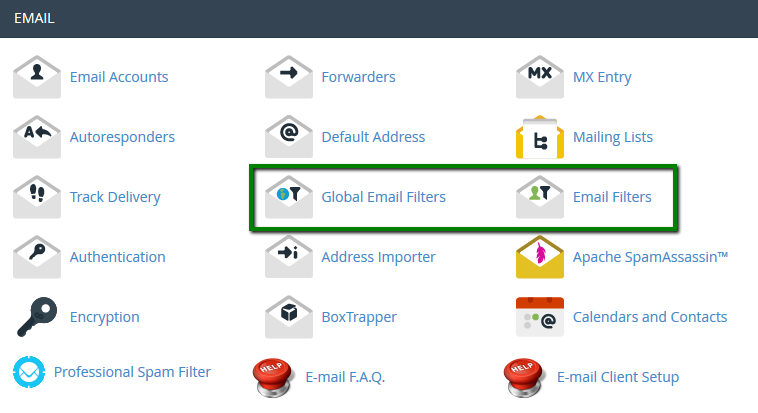
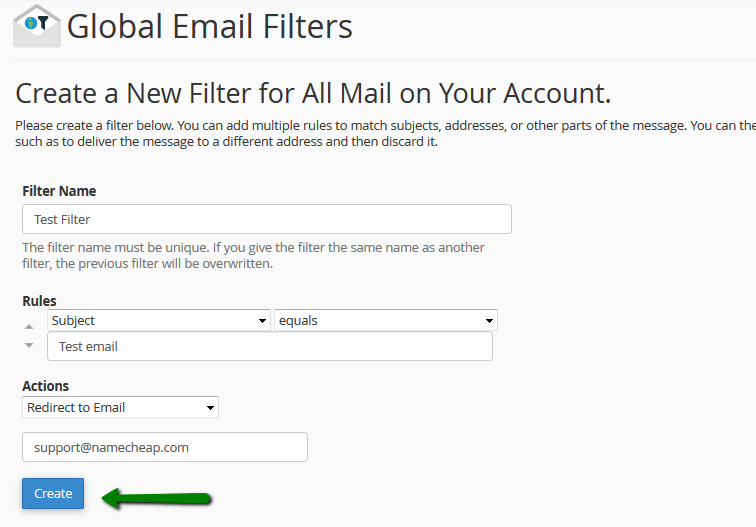
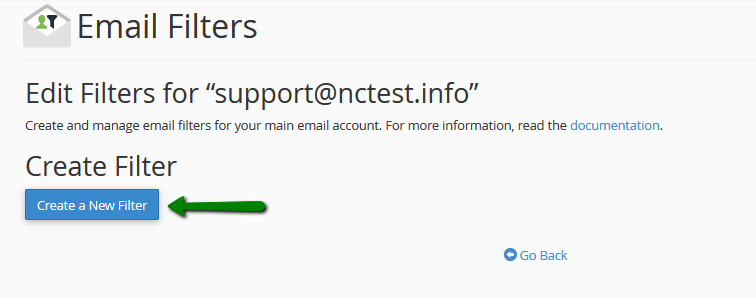
Account Level Filtering interface allows you to configure filters of all the emails arriving to your hosted domains. You may create the filters in this interface by selecting the icon and clicking on Create a New Filter button:
User Level Filtering interface allows you to filter the emails of each email account for your domain: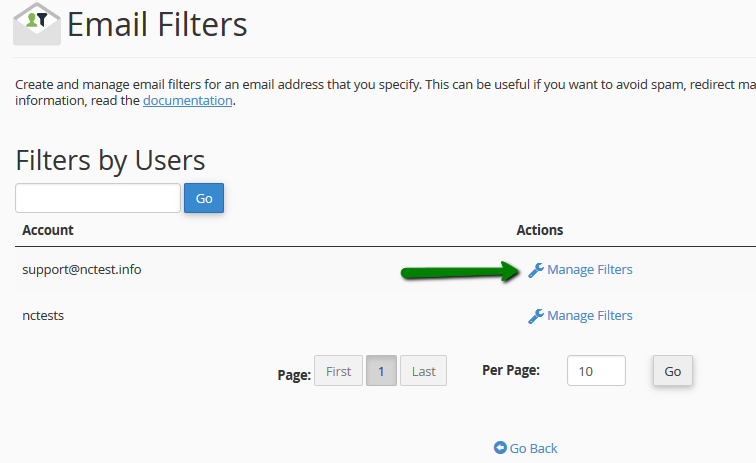
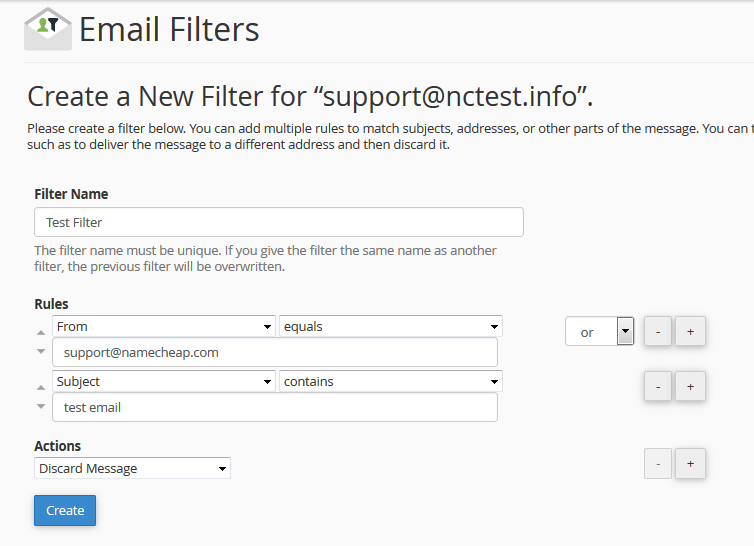
Let’s review filter rule and its criteria which specify the part of the email message and whether the message matches your filter parameters. You may choose among the following options:
From: the sender email address of a message
Subject: subject of the email
To: the recipient email address of a message
Reply Address: the address at which the sender receives replies
Body: the content of the message
Any Header: any part of the header of the message
Any Recipient: any recipient of the message
Has Not Been Previously Delivered: the system only examines messages that remain in the queue for delivery
Is an Error Message: the system only examines error messages that an auto-response system sends
List ID: the mailing lists of the account
Spam Status: whether Apache SpamAssassin™ marked the message as spam. The Spam Status line begins with Yes or No
Spam Bar: the content of the Spam Bar header that Apache SpamAssassin generated for this message. The more plus signs (+) that Apache SpamAssassin assigns to a message, the greater the likelihood that the system marks the message as spam
Spam Score: the total number of plus signs (+) in the Spam Bar value, expressed as an integer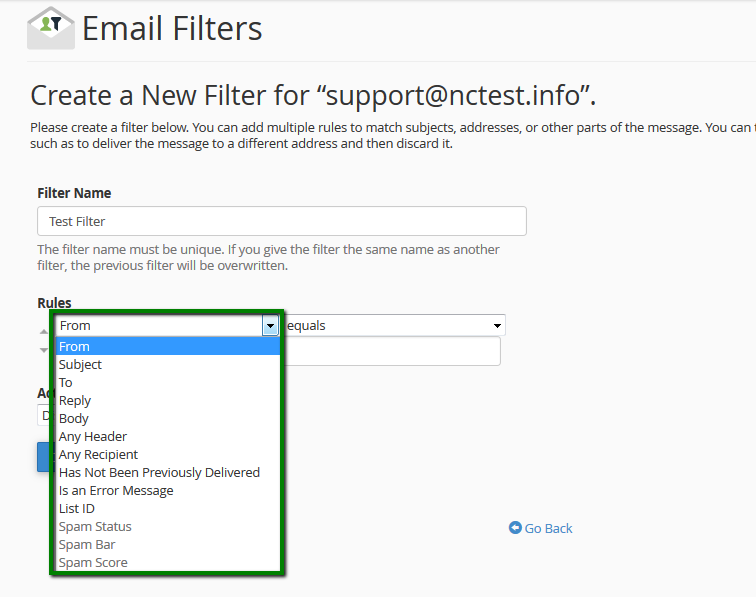
NOTE: Spam Status, Spam Bar and Spam Score options are active when Apache SpamAssassin is enabled for the account.
Operators
This option will allow you to select the way the portion of the email message will be compared according to the criteria you have selected. You may choose among the following options:
Equals: the message is exactly the same as the defined string
Matches Regex: the message matches a regular expression that you set
Contains: the message has the string that you define
Does not contain: the message does not contain the string you define
Begins with: the message begins with the defined string
Ends with: the message ends with the defined string
Does not begin: the message does not begin with the defined string
Does not end with: the message does not end with the defined string
Does not match: the message does not match the defined string
Criteria
This option defines the comparison that the system performs. For example, if you select the From and Equals filters, enter info@nctest.info as the criteria, the system will determine that any email from info@nctest.info matches the filter, but does not match contact@nctest.info because it contains another email address:
Actions
When the server determines, that the email message matches the filter, it handles the message with one of the following options: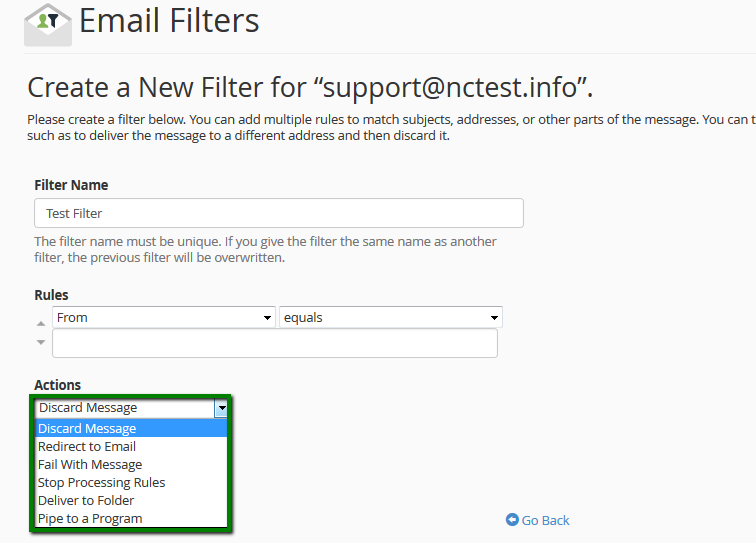
Discard Message: the message will be discarded without failure notice
Redirect to Email: the message is forwarded to a particular email address
Fail With Message: the message will be discarded and automatically sent with failure notice to a sender
Stop Processing rules: the system skips all filter rules
Deliver to Folder: the message will be delivered to a specified folder
Pipe to a Program: the message is sent to a particular program by the system
That's it!